You will need at least the following:
Install the CPU board and the hard drive or compact flash reader in the computer. Connect power, monitor, keyboard and mouse. Power up and insert the bootable install CD.
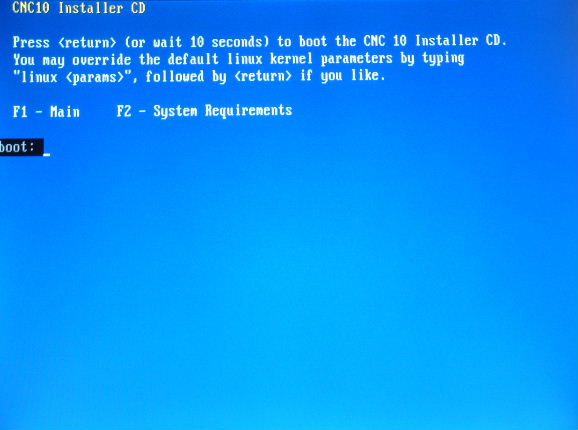
After a moment you should see a startup screen like the following:
Press Enter, or just wait a few seconds. CNC Linux will then start up from the CD. Eventually you will see the CD menu:
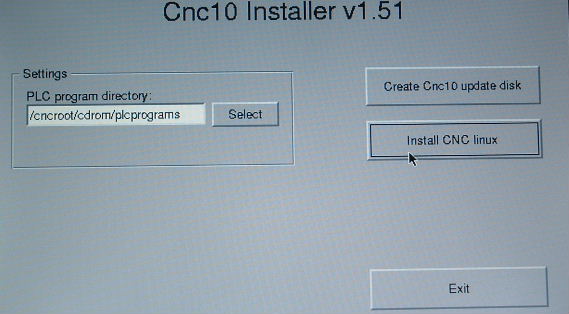
Select "Install CNC Linux"
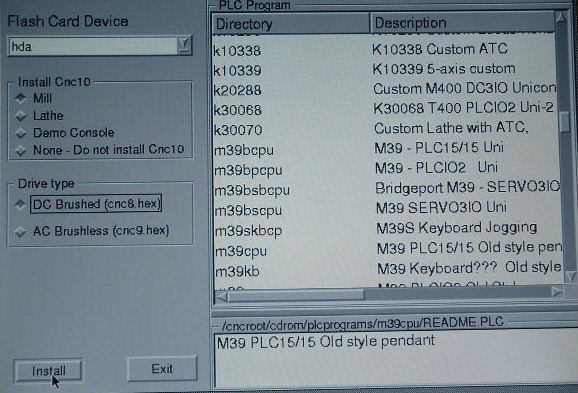
After another pause, you will see the installation options:
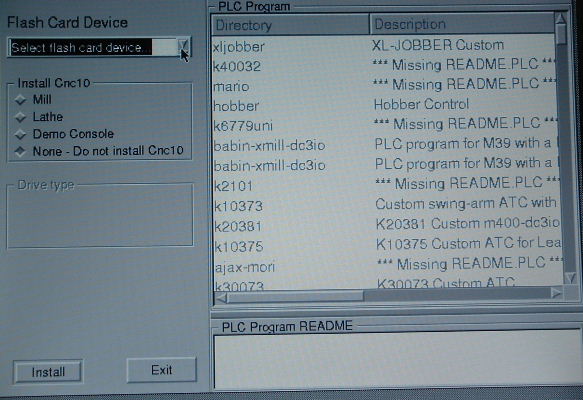
For "Flash card device" select hda. Even if you are using a conventional hard drive, the installer calls it a flash card.
Select Mill or Lathe as appropriate.
Select a PLC program. If you are updating an existing control and have a Configuration Backup or Report, then choose "None". Otherwise choose something basic and similar (e.g. M39 or T39).
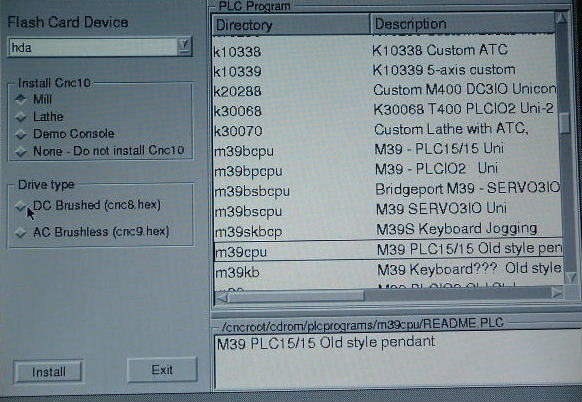
After you have chosen a PLC program, you may be prompted to specify whether the control is a DC Brushed servo system or an AC Brushless servo system. If your control uses Centroid factory drives, answer appropriately.
If your control uses third party drives (Yaskawa Servopacks, for example) through the Centroid OPTIC1 interface, then you should choose "DC Brushed" even though you really do have AC servos. The OPTIC1 looks to the controller like a Centroid DC drive.
When you have made your choices, then select "Install".
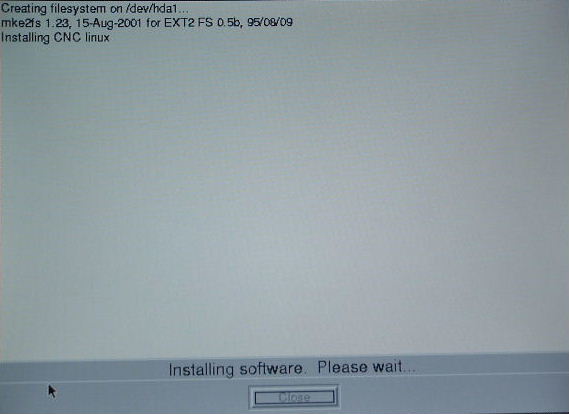
The installer formats the hard drive or flash card as needed, and installs the requested control software.
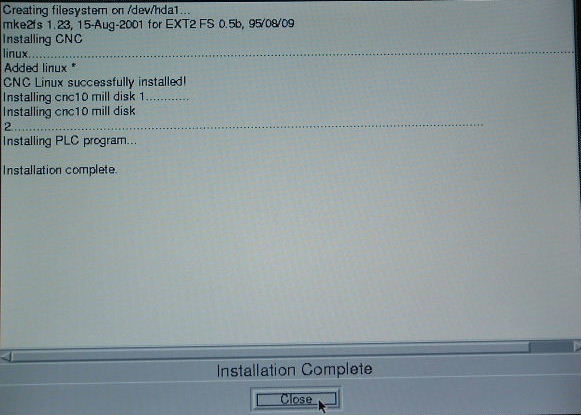
When installation is complete, select the "Close" button.
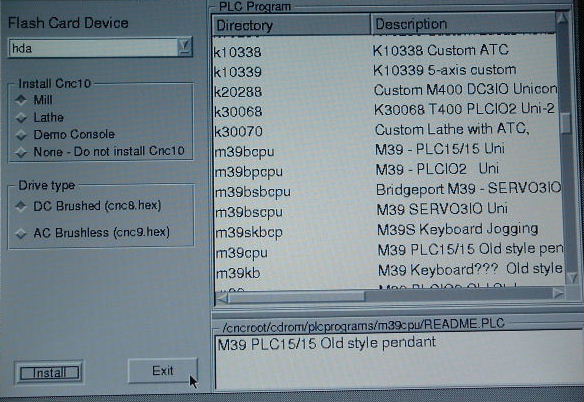
You will be returned to the installer options screen. Select "Exit".
You will then be returned to the startup CD menu. Select "Exit" here too.
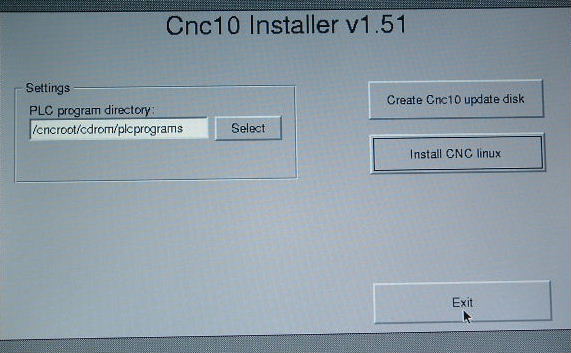
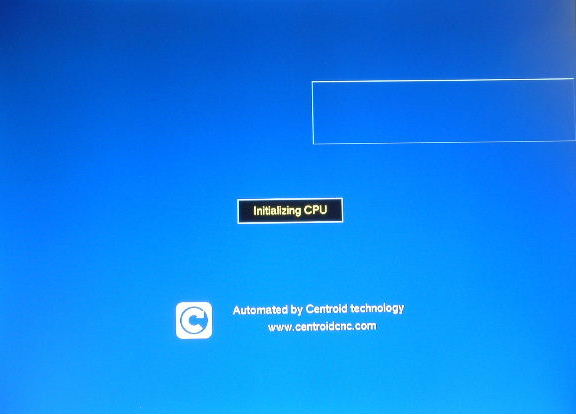
The PC will shut down and eject the CD. Remove the CD and allow the PC to automatically reboot. If all goes well, it will boot from the flash card or hard drive we just set up, and automatically start the control software.
Next you just need to restore the configuration files that you backed up from the previous system.
Copyright © 2026 Marc Leonard
Last updated 01-Apr-2026 MBL
